Free Up Memory Before You Play
Many school and budget Chromebooks have only 4GB of memory, and every open tab takes a share of it. Video sites, shared documents and slide decks are especially hungry. If a game stutters or the fan starts spinning, the fastest fix is to close the tabs you don't need, not to reload the game five times.
To see what's using your memory, press Search and Esc together to open the Task Manager. It lists every tab and extension with its memory use, and you can end the heaviest ones from there. If your Chromebook has been running for days without a restart, a quick reboot clears out leftover processes as well. Extensions count too: each one runs in the background, so if you're allowed to manage them, switch off the ones you never use.
Recent versions of Chrome also include a Memory Saver option that puts inactive tabs to sleep. If you see it in Settings under Performance, turning it on gives more room to the tab you're actually playing in. On a school device this setting may be managed for you, so don't worry if you can't change it.
A good habit is to treat game time like a fresh start: save your work, close the documents and video tabs you no longer need, and open only the game. On a 4GB device, the difference between ten open tabs and two can be the difference between a game that stutters and one that runs smoothly from the first second.
Fullscreen: The Game Button vs the Chromebook Key
There are two kinds of fullscreen, and they do different things. The fullscreen button on each game page at The Pizza Edition expands the game itself to fill your display, which is the best option for most games because it hides everything else on the page. Press Esc to return to the normal view.
The fullscreen key on a Chromebook keyboard sits in the top row, right next to the refresh key, and its icon is a rectangle with marks at the corners. It hides the browser's tabs and address bar so the whole page gets more room, which can make a game a little bigger depending on how it scales. Press it again to switch back. This is a useful fallback for a game that looks stretched in true fullscreen.
If a game is cut off at the edges, zoom the page out with Ctrl and the minus key, then press Ctrl and 0 to reset the zoom when you're done. This is also handy when a game was designed for a larger monitor than your Chromebook screen.
Fullscreen also helps with controls. When a game fills the screen, stray clicks are less likely to land outside the game area, which would otherwise take focus away and make your keys stop working. If the arrow keys suddenly start scrolling the page instead of moving your character, click inside the game once and the problem goes away.
Trackpad or Mouse? Match the Controls to the Game
The trackpad is fine for games where you click at your own pace, such as solitaire, 2048 or Pizza Tac Toe. Turning on tap-to-click in your Chromebook's touchpad settings makes those games feel quicker, since you won't have to press the pad down for every move.
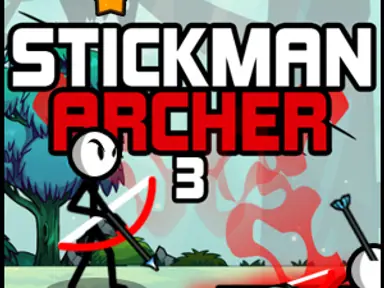
Precision games are a different story. Dragging to aim in Stickman Archer 3 or lining up a shot in 8 Ball Pro is much easier with an inexpensive USB or Bluetooth mouse, because a trackpad tends to jump when you lift your finger. Fast mouse-steered games such as Paper.io 2 benefit too, although Paper.io 2 also accepts the arrow keys or WASD, which many trackpad players prefer.
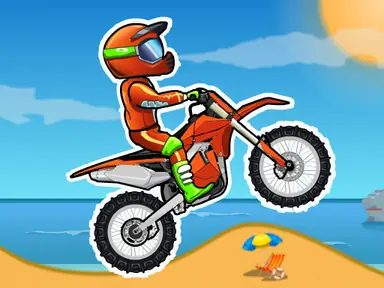
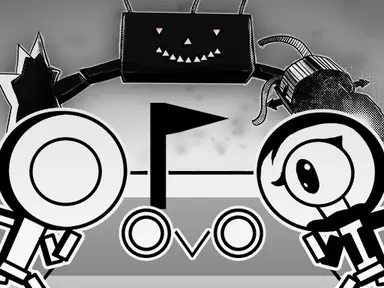
Keyboard games sidestep the issue completely. Moto X3M, the Vex series and OvO are played with the arrow keys, so they feel the same on any Chromebook. If a game seems to ignore your keys, click once inside the game area so it has focus, then try again.
Which Games Run Best on a Low-End Chromebook
Simple 2D games run best on budget hardware. Card games, puzzles and classic arcade games draw very little on screen, so they stay smooth even with a few tabs open. Our own originals were built with this in mind: they're lightweight 2D games hosted on The Pizza Edition itself, so they don't have to load from another game portal first.
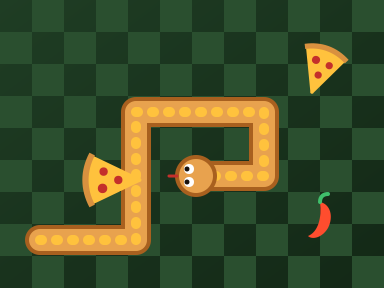
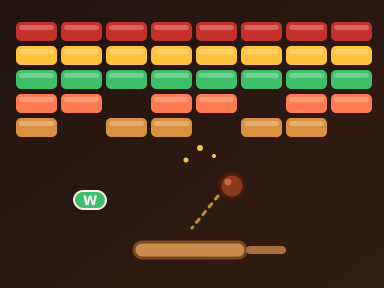
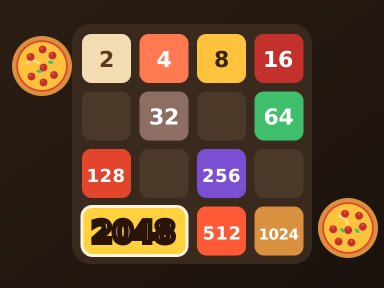
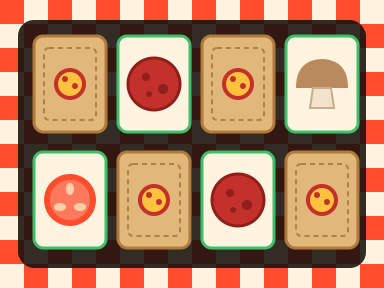
Good choices include Pizza Snake, Pizza Breakout, Pizza 2048 and Topping Match, a memory game with pizza toppings and three difficulty levels. From other studios, Klondike Solitaire and 2048 Classic are about as light as browser games get. All of them are played with simple clicks or arrow keys, so they suit a trackpad too.
3D games are where older Chromebooks struggle. Titles such as Snow Rider 3D, City Car Parking 3D and the first-person shooter Bullet Fury 2 can drop frames on a low-end device. They may still be playable, but close everything else first and expect a less smooth experience than on a newer machine.
Pizza Breakout deserves a special mention because it shows how much a simple 2D game can offer: ten levels of brick-breaking with power-ups, all running smoothly on modest hardware. If you want to test whether your Chromebook can handle 3D, try Helix Jump first. It's a light 3D game, so if it runs well, heavier titles have a fair chance too.
How Do You Fix Lag in Browser Games on a Chromebook?
Lag usually comes from one of three places: memory, power or the network. Start with memory by closing other tabs and checking the Task Manager. Then check power, because a Chromebook running low on battery or in battery saver mode slows itself down to last longer. Plugging in the charger often makes an instant difference in 3D games.
If the game loads slowly but runs fine once it starts, the network is the likely cause. Move closer to the Wi-Fi router if you can, and avoid starting a game while a big download or video call is running on the same connection. Most games on The Pizza Edition only need to load once per session, so a slow start doesn't mean the whole game will be slow.
Inside the game, look for quality settings. Some 3D games let you lower graphics detail or turn off effects like shadows, which helps a lot on budget hardware. If a game has no such option and still stutters, it may simply be too heavy for your device, and a lighter 2D game will be more fun.
Your Saves Live in the Browser
Browser games don't keep your progress in an account. They save it in the browser's own storage on that specific device, which is why your unlocked levels and upgrades are waiting when you come back tomorrow, and also why they can vanish without warning.
Clearing your browsing data with cookies and site data selected will erase those saves, and so will playing in a guest session or an incognito window, both of which forget everything when you close them. Some schools also wipe managed Chromebooks between users. If you're building up a long-running game like Pizza Clicker, Tiny Fishing or Idle Pizza Business, stick to the same device and the same signed-in profile, and leave site data alone when you tidy up your browser.
If you use more than one Chromebook, think of each as a separate save slot. Progress on a classroom device won't follow you to a home laptop, so pick one place for your long-running games and use the other for quick arcade rounds like Flappy Pizza or Helix Jump, where there's nothing to lose.
Our own Pizza Clicker autosaves as you play and even pays out offline earnings for up to two hours while you're away, but those earnings are stored on the same device as the rest of your save. Opening the game on a different Chromebook starts a brand-new bakery, so keep your main idle games on the machine you use most.
Setting Up The Pizza Edition for a Quick Game Session
A little setup makes every session smoother. Bookmark your favorite games directly instead of searching for them each time, and keep them in a bookmarks folder so they're one click away. If you play the same few titles often, the game pages on The Pizza Edition load faster on later visits because your browser keeps some of the files.
Before you start, check three things: the charger is plugged in or the battery is above about a third, the volume is where you want it, and only the game tab is open. Then click once inside the game area so it receives your key presses. It takes a few seconds and prevents most of the problems people blame on the game itself.
If you're new to playing on a Chromebook, start with a light game such as Pizza 2048 or Topping Match to get a feel for the trackpad, then move on to keyboard games like Slice Runner, where you jump, double-jump and slide, before trying heavier 3D titles.
Sound, Updates and Other Small Fixes
Use headphones whenever you play somewhere shared. The volume keys are in the top row, and you can silence a noisy game quickly by right-clicking its tab and choosing Mute site. If you share a room with others, keeping a pair of cheap earbuds in your bag saves a lot of awkward moments.
Keep ChromeOS up to date, because updates bring browser and graphics fixes that help games run properly. Open Settings, go to About ChromeOS and select Check for updates, then restart when it asks. On school devices, updates are usually managed for you, so the main job is to restart when prompted instead of putting it off for a week.
If a game freezes on a black screen, reload the page before trying anything else. If it keeps happening, the device may be low on memory or battery, so close tabs and plug in your charger. If battery saver is turned on, it can also hold back performance.